Banners
Go to Design → Banner Manager
The Banner Manager lets you create promotional banners, organize them into groups, place them on the storefront, and track how they perform.
Banner types
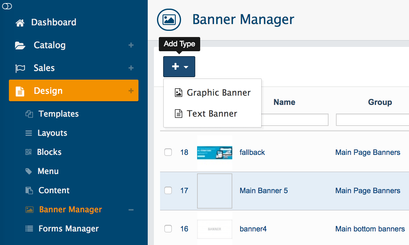
Banner Manager supports two types of banners:
Graphic Banner: an image linked to a page or URL. Best for ready-made artwork.
Text Banner: an HTML block. Because it accepts HTML, a text banner can contain formatted text, images, buttons, and custom markup. Text banners support multiple languages, so update the banner content for each installed language.
Banner groups
Banners are organized into banner groups. A group can hold several banners, and each banner has a Sort Order within its group. Each banner also has a Name, Status, Description, URL, an Open in New Window option, and an active date range set with Date Start and Date End.
Showing banners on the storefront
Create one or more banners (Graphic or Text) in a group.
Create a Banner block and assign the banner or the whole banner group to it.
Add the Banner block to a page in Design → Layouts.
A Banner block can show a single banner or display a whole group. With a slider wrapper, the group's banners rotate as a slider or carousel.
Sliders
A storefront slider (carousel) is a rotating set of banners. There are a few ways to run one:
Show a banner group in a Banner block with a slider wrapper, as described above.
Edit the theme's built-in home page carousel block directly in Design → Layouts. The default and Novator themes manage their home page sliders this way. See Banner Slider for theme-specific steps.
Install a dedicated slider extension (see marketplace.abantecart.com)
Banner statistics
AbanteCart records views and clicks for banners created with Banner Manager. To review them, go to Reports → Banner Statistic.